A free alternative to Peachtree accounting
Peachtree was the desktop accounting program Sage later renamed Sage 50. If you still like your books on your own computer, Celerp works the same way: double-entry books, invoices, bills and stock, free, and with no account needed.
Celerp does not open Peachtree company files, but it imports your Sage 50 books, journals included, from the files Sage 50 exports. You can also bring just your lists across as CSV files, step by step below.
Where your Peachtree work lives in Celerp
The names change a little. The work is the same.
| In Peachtree | In Celerp |
|---|---|
| Customers | Customers |
| Vendors | Vendors |
| Inventory Items | Inventory |
| Chart of Accounts | Accounting settings, Chart of accounts |
| General Journal | Accounting, Journal |
How to migrate from Sage 50 / Peachtree to Celerp
Celerp reads the files Sage 50 writes from its export templates and reports, from the US edition of Sage 50 or Peachtree 2010 or later. The UK and Canadian editions are not read.
Export your lists and journals
In Sage 50, open File > Select Import/Export. For each template, choose Export, tick Include Headings on the Options tab, set the date range to All and save the file: the Chart of Accounts, Customer, Vendor, Inventory Item and Employee Lists, and the General, Sales, Cash Receipts, Purchase and Cash Disbursements Journals.
Export the reports
In Reports & Forms, export to Excel a General Ledger Trial Balance as of the last day of each fiscal year and of the last transaction, plus the day before the first transaction if your books have beginning balances. Export the Aged Receivables and Aged Payables reports as of the last transaction.
Upload them to Celerp
Install Celerp, choose Move your books from another system, pick Sage 50 / Peachtree as your current system and add the files, one at a time or as one zip. The exports do not say which currency your books are in, so you choose it.
See what comes across
Before anything is imported, Celerp lists every kind of record in your file or files and shows what comes across, what comes across in part, and what it cannot bring over yet.
Choose full history or a cutover date
Full history recreates every transaction. Cutover starts from a date you choose: balances on that date become opening balances, and open invoices, bills and stock are recreated.
Check the results
Celerp compares its totals with the totals in your file or files and shows any difference. Download the reconciliation pack for your records or your accountant.
Your Sage 50 company stays as it is. Celerp only reads the exported files, so you can keep working in Sage 50 until you are happy with the result.
What moves from Sage 50 / Peachtree
Celerp shows this for your own file before you import anything.
Comes across
Chart of accounts, customers, vendors, inventory items, sales invoices and credit memos, purchases and vendor credit memos, receipts and payments, general journal entries and sales tax. A trial balance dated before your first transaction becomes one opening journal entry.
Checked against your file
The trial balance on each date you exported it for, and each customer's and vendor's balance against the aged receivables and payables.
Listed, not moved
Quotes post nothing and are not imported. Customer and vendor beginning balances are not imported as invoices or purchases. Voided transactions, retainage, purchases received before their bills, refunds applied to credit memos, receipts and payments applied to no invoice or purchase (such as prepayments), and transactions that fill a Sage 50 field Celerp does not read come across as the journal entries they posted, so every balance still matches Sage 50. A full history import cannot include them: import from a cutover date after the customer and vendor beginning balances are paid, the prepayments are applied, the bills for those purchases are entered, and the other transactions above.
Not supported yet
Sage 50 does not export quantities on hand: count your stock in Celerp after the import. Payroll checks, inventory adjustments and the cost of goods sold posted for stock items are not exported either, and the check shows where they leave the trial balance. Celerp does not keep employee records.
Or bring just your lists across as CSV files
Export your lists from Peachtree
In Peachtree, open the File menu and choose Select Import/Export. Export lists such as customers, vendors, inventory items and the chart of accounts to CSV files.
Create your company in Celerp
Download Celerp, create your company and choose the currency for your books.
Import each file
Import your customers and vendors as contacts, your inventory items with the stock you have, and your chart of accounts. On each import screen you match the Peachtree columns to Celerp's and check the rows before anything is saved. Celerp starts with a standard chart, and your import adds the accounts it does not have.
Enter your opening balances
Pick a start date and enter the other balances on that date, such as bank, loans and equity, as one journal entry. Celerp books the stock you import as opening stock, so leave stock out of that entry. Open invoices and bills can come in through the documents import, marked as already in your opening balances.
What stays the same, and what you gain
Your books stay on your computer
Celerp installs on your computer and keeps its database there. You do not need an account or an internet connection to keep your books.
Double-entry, the way you know it
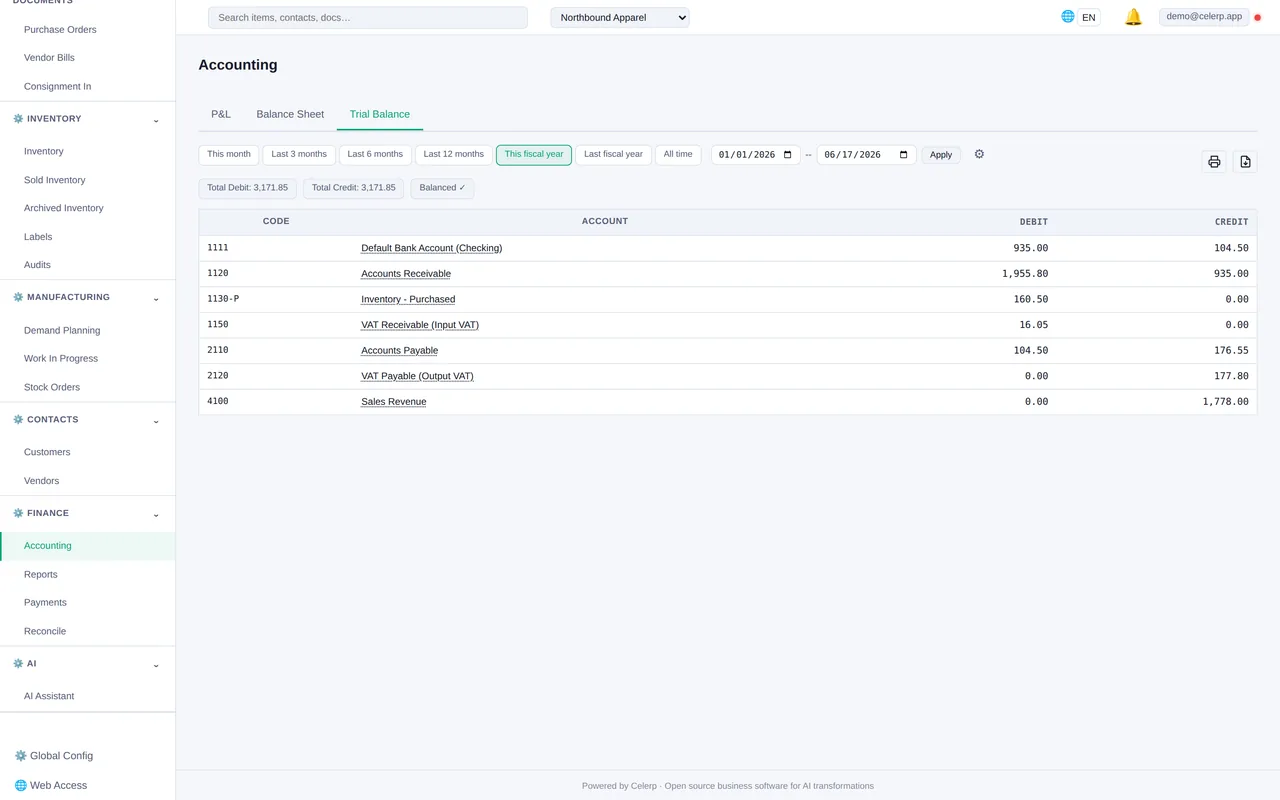
A chart of accounts, a journal, a general ledger and a trial balance. Invoices, bills and payments post balanced entries on their own.
Stock and books together
Receive stock on a supplier's bill and sell it on an invoice. What the stock is worth and what it cost you go to the books without a separate entry.
Free, with no time limit
The desktop app is free with no time limit and no per-user fee. Connect, the paid plan, adds things that run on our servers, such as remote access and encrypted backup.
Questions about moving from Peachtree
Can Celerp open my Peachtree company file?
No. Celerp imports the lists, journals and reports Sage 50 exports instead: choose Move your books from another system, pick Sage 50 / Peachtree and add the files Celerp asks for.
Is Celerp really free?
Yes. The desktop app is free with no time limit and no per-user fee. Connect, the paid plan, adds things that run on our servers, such as remote access and encrypted backup. Online invoice payments are free to set up: you pay 1% plus Stripe's processing fee when an invoice is paid.
Does it work without the internet?
Yes. Your books and your database are on your computer, so you can work offline. Sending documents by email through Celerp and share links need a connection.
Is Celerp available in Amharic?
Yes. You can switch the app to Amharic or to 11 other languages, and keep your books in birr (ETB) or any other currency.
What do I need to run it?
Windows 10 or later (64-bit), macOS 12 Monterey or later (Intel and Apple Silicon), or Ubuntu 20.04+ / Debian 11+ (64-bit). Celerp brings its own database, so there is nothing else to install.
Bring your Peachtree books to Celerp
Download Celerp, choose Move your books from another system and add your Sage 50 files.